
The Labels module is used to create partial & full case labels for a PO.
To access the Create Full Case Labels option:
Click the Shipping Module or click the Labels option under the Shipping Activities panel on the System Alerts screen.(See Fig. 1)
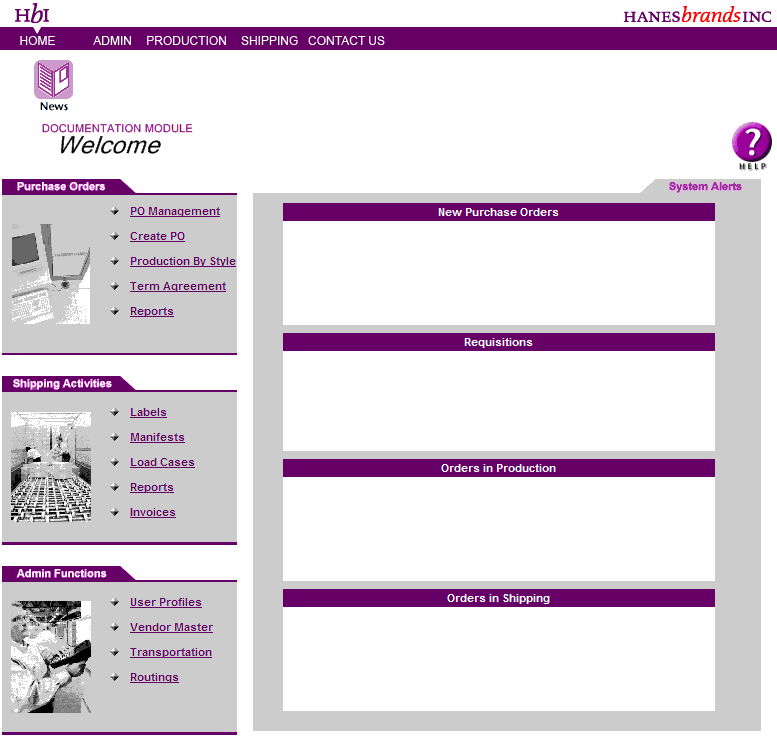
Fig. 1
The Labels Module Welcome screen is displayed. (See Fig. 2)

Fig. 2

NOTE: The Vendor name for a vendor is displayed by default. The Vendor Facility displays only the facility names that have orders for them.
Click the Create Full Case Labels option. The Create Labels screen is displayed.(See Fig. 3)
NOTE: When Full Case Labels are created for a PO, the system saves the selection made on the Create Full Case Labels screen for a PO to display the same PO & its line items details on the Create Partial Case Labels screen.
To create partial labels for a different order, select a Purchase Order from the Purchase Order drop down. The screen refreshes to display the Line Items for the selected PO.

Fig. 3
The Create field displays the number of labels that can be created for the line item.
The Case Quantity field defines the quantity in Dz/Pcs required to make a partial case.
The Case Size defines the quantity required to make a full case.
Enter the Case Quantity in the Case Quantity field to create a partial case.
Note: Maximum Quantity for a Partial Label is one less than a full case.
Select the Line Item checkbox to create labels for a line item & click Create.
Note: If Labels are already created for a line item, a message "Labels have been printed for this line item. For more information click on details" is displayed.
The screen refreshes to create the labels & the number of labels created link is displayed on the Create Labels screen.(See Fig. 4)

Fig. 4
Note:
Click on the  icon. The Labels report is displayed.
Click the number of labels created link to view the details for the labels created. (See Fig. 5)

Fig. 5