
The Labels module is used to create partial & full case labels for a PO.
To access the Create Full Case Labels option:
Click the Shipping Module or click the Labels option under the Shipping Activities panel on the System Alerts screen.(See Fig. 1)
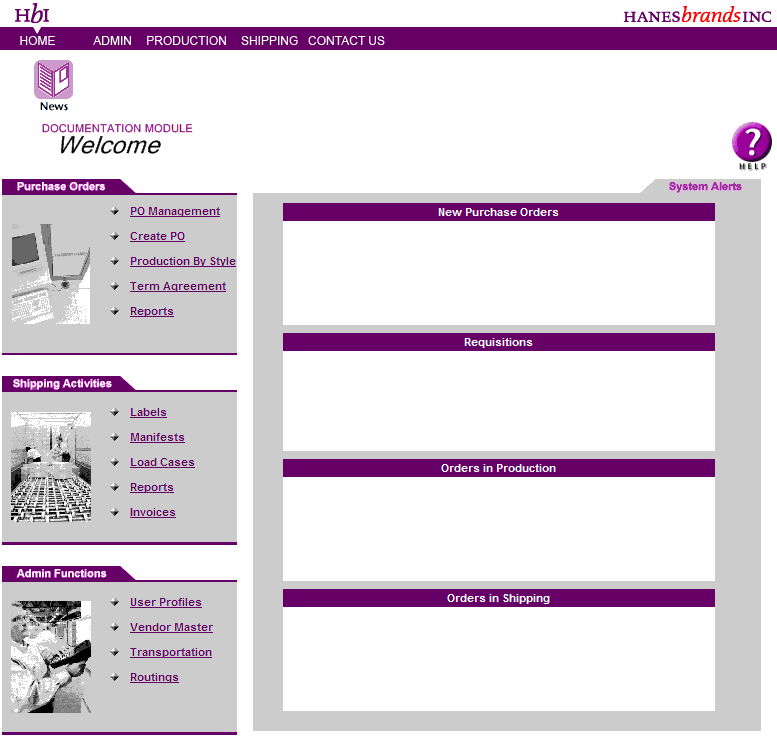
Fig. 1
The Labels Module Welcome screen is displayed. (See Fig. 2)

Fig. 2
Click the Create Full Case Labels option. The Create Labels screen is displayed.(See Fig. 3)
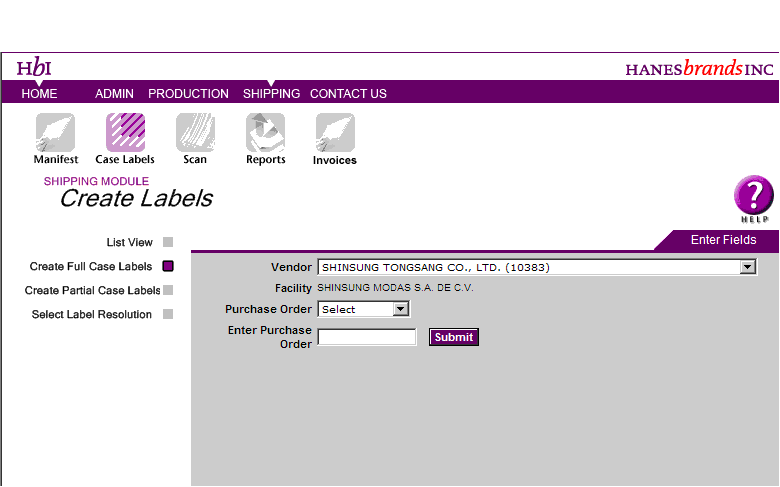
Fig. 3
Select a Purchase Order from the Purchase Order drop down. The screen refreshes to display the Line Items for the selected PO. (See Fig. 4)

Fig. 4
The Create field displays the number of labels that can be created for the line item.

Note:The Create field is populated with the Order Quantity for the line item. If the value in the Create field is set to a value less than the Order Quantity, labels can be printed.
If the value in the Create field is set to a value greater than the Order Quantity, the Create field is reset to the Order Quantity value.
The Case Quantity field defines the quantity in Dz/Pcs required to make a full case.
The Order Quantity field represents the line item quantity in Dz / Pcs .
Select the Line Item checkbox to create labels for a line item & click Create.
The screen refreshes to create the labels & number of labels created link is displayed on the Create Labels screen.(See Fig. 5)

Fig. 5
Note:
Click on the  icon Labels report is displayed.
Click the Number of Labels created link to view the details for the labels created. (See Fig. 6)
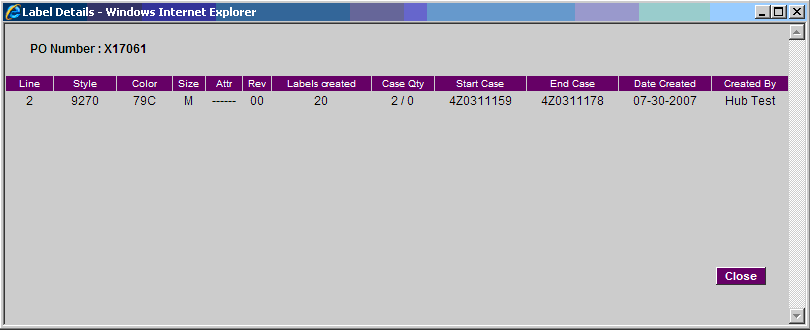
Fig. 6