
The purpose of this document is to provide setup instructions for the Zebra printer & additional instructions and tips for routine maintenance and trouble shooting of Zebra printers. This document acts as a quick reference with list of additional tips of experiences collected during various trouble shooting and maintenance activities on Mexico plants.

IMPORTANT: This document takes as foundation the Routine Maintenance Guide for Zebra Printers guide.

Zebra Printer setup as a network printer:
Please follow the instructions below to add the Zebra printer from the network.


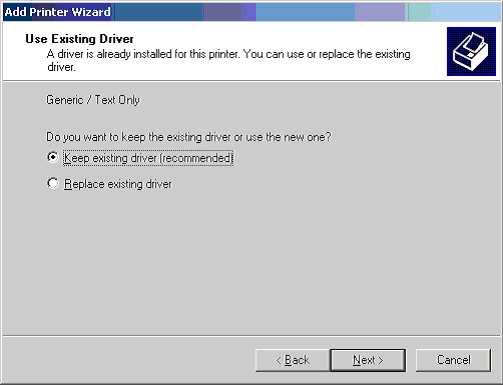


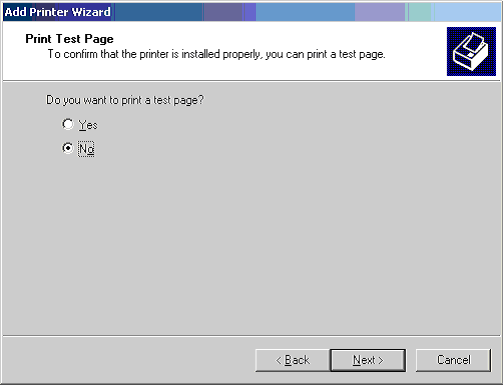
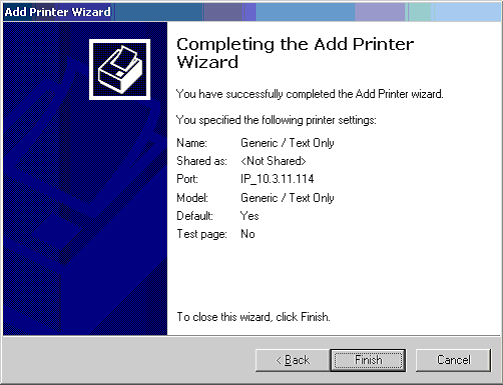
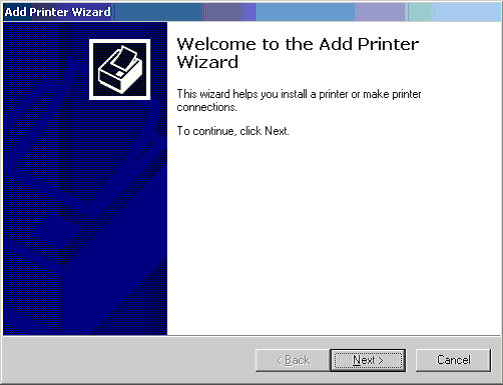
Please follow the instructions below to add the Zebra printer as a local printer.

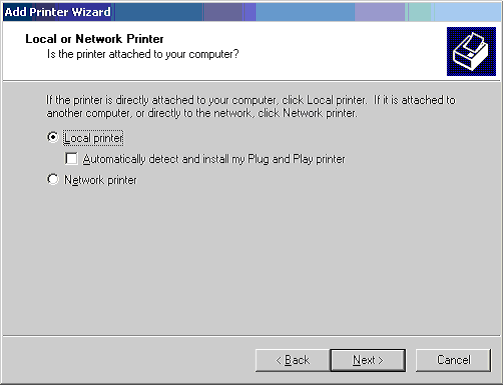


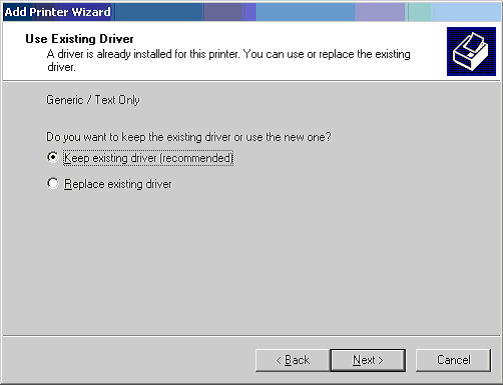
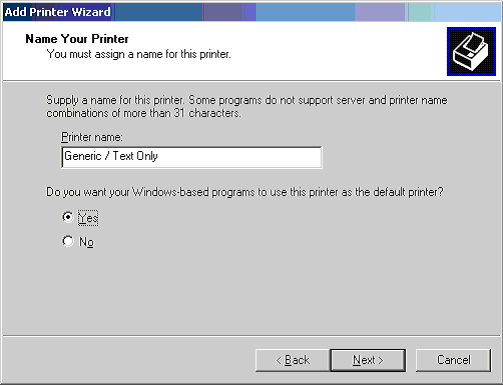
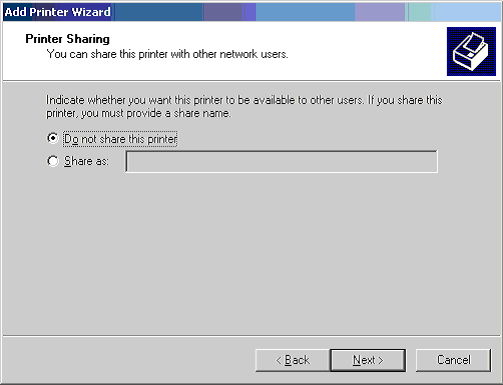
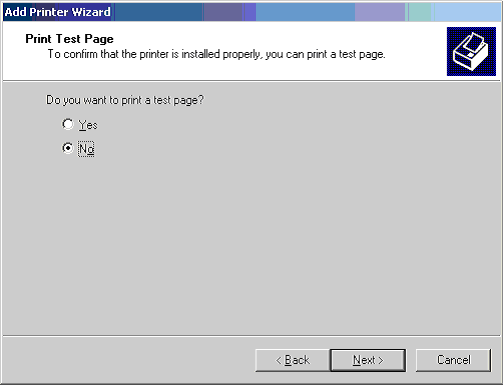
Note: Do not print a test page, the test page does not generate ZPL code.

TroubleShooting (Case Labels printed are half the size):
Some times, the case labels are printed half the size of the label. This is because the printer's resolution had gone back to 300 dpi.
In such situations, send the attached file to the printer port (can be a network port address or LPT1, LPT2 for local printer)
Go to dos prompt.
Make sure the file is in C:\ drive.
Copy c:\150dpi.zeb LPT1
Copy c:\150dpi.zeb IP_10.3.11.114 (name of the network printer port configure in the local pc)

Open a DOS Session (Start -> Run -> cmd <ENTER> ).
Go to the C root (cd\ -> <ENTER>)
Type this instruction mode com1 9600,n,8,1 (Change com1 if the printer is in other COM port)
Look for the files test.zeb and 300dpi.zeb into C drive
If the files are located:
Turn On the Printer
Type from DOS Session copy test.zeb com1 (Change the com1 if the printer is in other COM port) a test label is printed
Then type copy 300dpi.zeb com1 , the green light is blinking.
Now try to print your labels
There could be other situations when the local browser had trouble installing or executing the active x control.
In such situations, visit the following link that will give you options to install the printer controls. Sourcing should use the first one.
http://207.140.66.103/InventoryTracking/cab/default.htm

Note: Change the IP address based on the address you are accessing the application.
If problem still persists, remove the installed active x control from Tools / Internet Options / Settings / View Objects and click the link again.
The value is preset from factory. It matches the resistance value of the printhead shipped with the printer. As expected, you may change the printhead from time to time (in Mexico plants its changed every six months average).
Two things can happen if the printhead value (shown on the printhead information label) is not set correctly: a higher value can damage the printhead or the printhead can be wear out quickly. See more information in Dos section of this document.
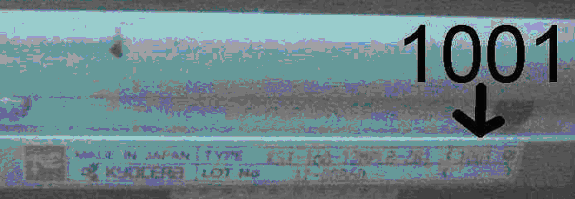
Before changing a printhead, check the value of the resistance (in ohms). The following photo should help you (in this case the resistance value is 1001 ohms) to get the head resistor value and set it up properly on the Zebra printer.

Isopropyl alcohol (Alcohol 70% or higher), Goo Gone (Adhesive remover), Glass cleaner (Goo Gone residue remover and general cleaner), Paper Towel, Q Tips
Interval:
Routine maintenance is recommended, every time you change the thermal transfer ribbon OR once in the week whichever is earlier or after 3 rolls of label stock.
Steps for routine maintenance (Printhead and Platten Roller)
Remove watches, bracelets, rings, etc. that may come into contact with the print head during cleaning to avoid scratching the print head. The print head contains hundreds of small elements, which may be easily damaged if something abrasive comes into contact with them.
Shut off the power.
Open the print head.
The print head will initially only open part of the way, lift the tension bars again and the print head will open further.
Move the ribbon to one side if one is currently installed. It is not necessary to remove the ribbon to clean the print head.
Soak the Q-tips in the isopropyl alcohol.
Press the tip against the print head and swipe the print elements* from end to end. *Print dot elements are the white lines visible in between the two brown lines on the print head. If you find a spot that is particularly dirty dont be afraid to apply some pressure as long as nothing abrasive comes into contact with the print head (like a finger nail or watch band).
Repeat this step until the tip no longer shows dirt.
Rotate the platen roller and clean thoroughly with solvent isopropyl alcohol and a Q-tip. Brush/vacuum any accumulated paper lint and dust away from the rollers.
Use Goo Gone to remove dirt and adhesives from all the sticky surfaces like the snap plate and white roller.
Goo Gone may leave some residue after cleaning the sticky surfaces. To remove the residue after cleaning with Goo Gone, wet the paper towel with glass cleaner and clean the surfaces.
Refer to section printer diagnostics to run various tests on the printer to ensure correct printing. For example, solid black block printing can be done to check missing dots.

To be performed every time you change a roll of ribbon.
|
Area |
Method |
|
Printhead |
Solvent Isopropyl Alcohol |
|
Platen Roller, Media Path |
Mild Window Cleaner - Windex |
|
Transmissive Sensor |
Air Blow |
|
Black Mark Sensor |
Air Blow |
|
Ribbon Sensor |
Air Blow |
To be performed every two months or if detecting that print quality was not improved after performing a routine maintenance .
Use Save-a-Printhead cleaning film. Refer to following section in this document for more details about it.
Using Solvent Isopropyl Alcohol, clean the following parts:
Tear-off/Peel-off bar
Snap plate
Cutter
Save-a-Printhead Cleaning Film
Save-a-Printhead cleaning film is a specially coated film that removes contamination buildup without damaging the printhead.
Save-a-Printhead cleaning film extends the life of your printhead, reduces maintenance downtime and the cost of replacing a printhead, and is an inexpensive, easy, and quick way to remove contaminants without removing the printhead.
Use Save-a-Printhead cleaning film when you see the first of every month or if you see degrading print quality that looks like faded print or a failed print element(s) that cannot be corrected by cleaning with the pre-soaked cleaning swabs.
NOTE: For 600 dpi printheads, use Save-a-Printhead cleaning film after every roll of media or when the printer LCD shows a "CLEAN HEAD NOW" warning.
NOTE: If power is removed from a later model 600 dpi printer when cleaning the printhead, the "CLEAN HEAD NOW" warning shown on the LCD will not disappear.
1. Open the media cover.
2. Open the printhead; remove media and ribbon from the print mechanism.
3. Clean the print head per the recommended Preventive Maintenance procedures.
4. Position the Save-a-Printhead film in the print path, placing the glossy side down away from the printhead (matte side up)5. Close and latch the print head.
6. Slowly pull the full length of the film through the print mechanism.
7. Clean the printhead a second time per the recommended Preventive Maintenance procedures, (page 5 of this manual) not with the film.
8. Reload media and ribbon, close and latch the print head.
9. Close the media cover.
10. Print labels and inspect for improved print quality. If quality has not improved, contact your distributor or Zebra Technical Support.
Only one pass of Save-a-Printhead film is required to remove contamination buildup, and each strip of film can be used up to 10 times. Discard the strip when residue buildup or other contamination is apparent.

CAUTION: The printer electronics are susceptible to static discharge. The Technician must wear an anti-static wrist strap connected to the printer chassis when removing and replacing the Printhead.
1. Turn the printer OFF and remove the Power Cord.
2. Open the Printhead Assembly and remove the media and ribbon; then close the Printhead Assembly.
3. Properly connect yourself to an anti-static protection system.
4. Locate the Spring-loaded Printhead Mounting Screw on top of the Printhead Assembly.
5. Loosen the Mounting Screw until it disengages from the Printhead.
6. CAUTION: Use care to minimize any physical damage to the Printhead during the remainder of this procedure.
7. Slowly open the Printhead Assembly. The Printhead will be resting on the Platen while the rest of the Assembly pivots back out of the way.
8. Spread apart the holding tabs on the sides of the Printhead Data Connectors to release the Data Cables.
9. Grasp the outside edges of the Printhead Power Cable Connector and press down on the Power Cable Locking Tab.
10. While maintaining pressure on the locking tab, disconnect the Printhead Power Cable and remove the Printhead through the front of the printer.
11. Prior to installing the new Printhead, note the Resistance Value located on the right side of the new Printhead Label.
12. Connect the Printhead Power Cable to the appropriate connector.
13. Spread apart the holding tab on the top of the two data connectors and press the appropriate Printhead Data Cable into each connector. The Holding Tabs must snap into place around the cable connectors.
14. Carefully position the alignment slots in the new Printhead over the alignment posts on the underside of the mounting bracket.
15. Once the Printhead is seated properly, carefully tighten the mounting screw to a value of 5-6 inch/pounds. (If any problems occur during this installation, contact your distributor or Zebra Technologies Corporation for technical support.)
16. Use a cleaning swab to thoroughly clean the print element (gray area) of the new Printhead.
17. Reinstall media and ribbon.
18. Connect the AC Power Cord and turn the printer power ON.
19. After the POST, enter the Configuration Mode, enter the new Printhead Resistance value, then permanently save the configuration. (Click Here for the printhead resistor label location)
20. Turn the printer OFF, then activate the PAUSE Key Self Test and check print quality.
21. The printer should be ready for operation.

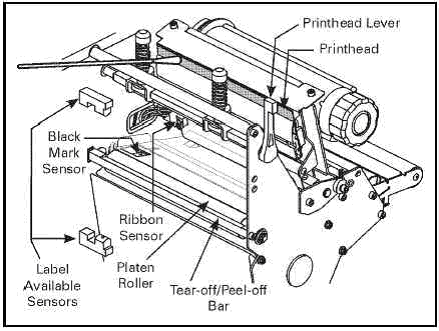
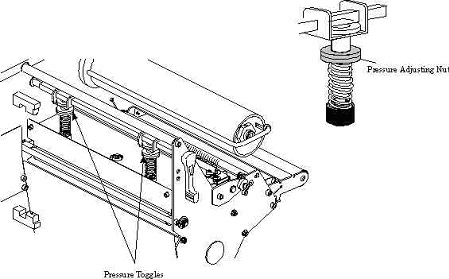
Printhead pressure is increased or decreased by turning the adjusting nut at the top of the Printhead pressure toggle. Compressing the tension spring increases Printhead pressure while releasing the tension reduces the Printhead pressure. The amount of pressure required for an application may vary but the focus should be on achieving optimum print quality evenly across the width of the printing area of the label.
Misadjusted Printhead pressure can result in ribbon wrinkle, poor print quality fully across or on one side of the label or label tracking/positioning problems. Printers with single toggles allow movement of the toggle and should be centered on the label width for even pressure. The toggle is positioned by loosening the upper locking nut and sliding the toggle over the center of the label. Once positioned the pressure can be increased or decreased as needed for the application. Printers with two pressure toggles require the outboard (the one farthest from the printer frame) toggle pressure be adjusted to assure even pressure across the label width.
(Note: The position of both pressure toggles can be changed but adjustment for various widths of media are made easier by increasing or decreasing the outboard toggle as needed.) When using narrow labels the outboard toggle pressure should be decreased. This allows the inboard pressure toggle to have the proper pressure effect. Use of full width labels typically require both pressure toggles be adjusted with the same spring compression to achieve even Printhead pressure.
Using lower Printhead Pressure and Darkness settings can extend Printhead life. If printing is too light on one side, or if thick media is used, Printhead Pressure may require adjustment.
The Zebra 90, 105 printers use only one toggle which should be positioned over the center of the media width. The 140, 160, 170, and 220XiII printers have two toggles. These toggles are typically positioned at the 1/4 and 3/4 positions across the width when using full width media. When using narrow media the outer toggle should be reduced to allow the inner toggle to have maximum effect.
Print PAUSE Key Self Test labels to check print quality. (Click Here for examples)
To increase Printhead Pressure, loosen the Upper Knurled Nut on the Toggle and adjust the Lower Toggle Adjusting Nut downwards.
To decrease Printhead Pressure, loosen the Upper Knurled Nut and adjust the Lower Toggle Adjusting Nut upwards.
Adjust Printhead Pressure for optimum print quality.
To lock the toggle pressure, tighten the Upper Knurled Nut against the Lower Toggle Adjusting Nut.
Enter the configuration mode and set the Darkness to the optimum level for the installed media.
Dos and Donts
Donts
· Dont use a screwdriver or any other sharp item to clean the print head, to remove dirt spots. This may damage the print head.
· Dont change printer settings to print darker. Darker Bar Code may look good to the eyes, but the scanner will scan with the cleaner printing. Darker printing may lead to bar code line mixing in with each other and not allow the scanner to scan properly.
· Dont clean the roller with alcohol. The roller surfaces are made of different material and alcohol may make it harder. Clean roller with Goo Gone and glass cleaner.
· Dont use the sticky or adhesives to load the ribbon. Refer to Ribbon Loading section in the Users Manual for proper loading of ribbon using the label media paper.
· Dont switch the printer On-off too fast. Wait for 5 seconds to turn on the power again.
Dos
· Keep the print door closed all the time. Dust in the printer may cause a small static discharge in the print head, damaging one or more elements.
· If you change settings to factory defaults make sure that the Head Resistor setting is changed to the value printed on a white label on the print head itself. Failure to change this setting to match the print head will cause the print head to wear out quicker. Each print head has a unique resistor (ohm) setting that is determined by the manufacturer when the print head is made. You must also set the printer back to 150dpi by sending the 150dpi.zeb file to the printer otherwise the case labels will print about 1/4th the size that they should.
· Setup the label length to one inch longer than the label length printed. For the GTIN label set the printer to 15 inches. For the ACT type label set it to 12 inches. This will reduce the amount of wasted labels when the printer is calibrated.
· Do ensure the paper role quality if the vendor is changed or with every change in the paper style. Any changes in the paper quality may lead to faster wear and tear of your print head.
· Do align the slots on the ribbon supply spindle while loading the ribbon.
· Do change the roller every time you change the print head.(Recommended).
· In order to avoid abrasion:
o Clean your print head frequently and use well-lubricated thermal transfer ribbons with back coatings optimized to reduce friction.
o Minimize print head pressure and burn temperature settings by optimizing the balance between the two.
o Ensure that the thermal transfer ribbon is as wide or wider than the label media to prevent exposing the elements to the more abrasive label material.
|
No |
Problem |
Possible Causes |
Possible Solution |
|
1 |
Lines running the length of the label, through bar codes, OR some dots are missing in the printing |
Dirt, adhesive or other debris on the print head in the area where print head is not printing |
Clean the print head as mentioned in the routine maintenance section. |
|
|
|
Dot elements of print head scratched or just worn out due to extensive printing |
Change the print head. Replacement print heads has installation instructions. For a maintenance person it is a 10 minute job for newer zebra models (1 screw and 2 wire connectors), for older models it may be 20 minutes (6-8 screws) |
|
2 |
Printer does not print |
Connection may be made to the wrong com port or the serial cable may be loose. |
Check the data light, it should blink when a label is sent to the printer. Check the connection and make sure that you are using the correct COM port on the computer. |
|
|
|
|
Try sending the TEST.ZEB label directly to the printer. If this label wont print then you have a printer issue. If this label prints then you have a software issue. |
|
3 |
Calibration does not happen |
Snap plate may be missing or may be positioned in incorrect way. |
Refer to cleaning of snap plate section for correct positioning of snap plate. |
|
4 |
Labels are skipped. e.g. after every two labels one is skipped |
There may be adhesive substances or paper dust on rollers. Rollers will slip in such cases. |
Clean the rollers with Goo Gone to remove the adhesive substances from the roller surface then with glass cleaner to remove the residue. In case of paper dust, clean it with glass cleaner and paper towel. Calibrate the printer again before printing. Opening and closing the print head should cause the printer to recalibrate (Zebra 105SL) or press the Pause button (to turn on the Pause light) then press the Calibrate button (Zebra 170XiIII). |
|
5 |
Peeling of labels |
Position of the labels may be incorrect. |
Best position for the labels is behind the printer, such that the loading of the paper is even. |
If the print out is smaller than the normal label printout size, use the following troubleshooting instructions below:
Open a DOS Session (Start -> Run -> cmd <ENTER> ).
Go to the C root (cd\ -> <ENTER>)
Type this instruction mode com1 9600,n,8,1 (Change com1 if the printer is in other COM port)
Look for the files test.zeb and 300dpi.zeb into C drive
If find them
Turn On the Printer
Type from DOS Session copy test.zeb com1 (Change the com1 if the printer is in other COM port) a test label is printed
Then type copy 300dpi.zeb com1, the green light is blinking.
Now try to print your labels.